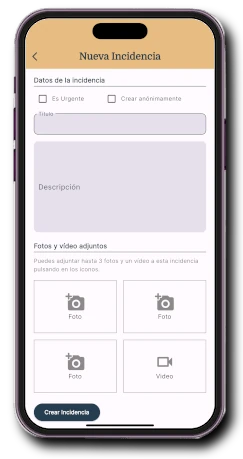
01
Create an incident
Describe what happened, select the location and add images directly from your phone.
Incident management
Residents, administrators, employees and providers share one process to report, assign, resolve and document every incident.
A complete cycle
Every incident keeps its context from the first report. The community knows what is happening, who should act and which evidence confirms the result.
A resident or employee describes the problem, indicates its location and can attach photos or video.
The person in charge reviews the incident, sets its priority and decides how it should be handled.
The work reaches the right employee, internal manager or provider with all the previous information.
Status changes, comments and evidence document the work through to closure.
Administrator panel
The panel centralises activity across one or several communities so management, the board or authorised staff can prioritise and coordinate the response.
Onzane app
The app reduces calls and scattered messages. Each person can report the problem with context and later review the information the community chooses to share.
Describe what happened, select the location and add images directly from your phone.
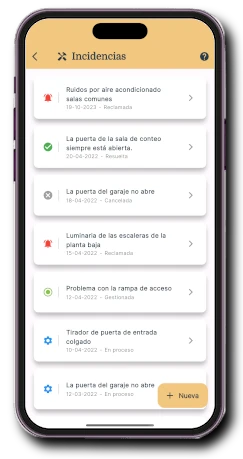
View open or resolved incidents according to the permissions set by the community.
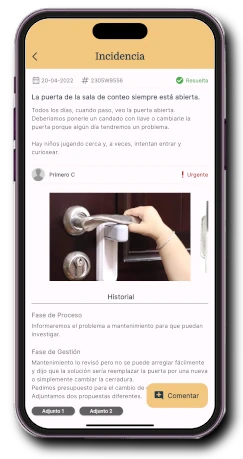
Review the status, priority, description, author and evidence for each incident.
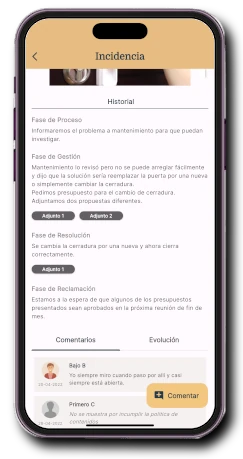
See status changes, owners, actions and comments in chronological order.
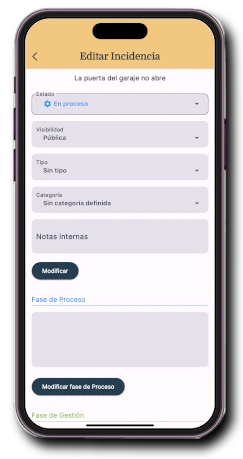
Onzane Staff and Provider panel
In-house staff work through Onzane Staff and providers through their panel. Both receive the necessary context and record execution without creating parallel conversations.
The same information, different responsibilities
Permissions adapt the process without losing a shared view of the incident.
They can create, comment on, escalate or resolve an incident when the community enables those actions.
They control status, visibility and owners while keeping the overall view of pending work.
They receive assignments and document work from their phone without waiting to return to an office.
They access assigned work and add updates and evidence within the same workflow.
How it works
This walkthrough shows how a resident records the issue and provides the initial information the community needs to start managing it.
Frequently asked questions
Answers about status, permissions, assignments, privacy and incident follow-up.
Residents can create one in the Onzane app, while authorised staff can do so through Onzane Staff or the panel. The community decides which profiles can perform each action.
The workflow distinguishes pending, in progress, managed, resolved, escalated and cancelled incidents. Not every incident must pass through every status.
Yes. The person reporting the incident can add evidence from their phone, and those managing it can include more information as it progresses.
Not necessarily. The community can show general incidents, only those linked to a property or only those created by each person. Private incidents can also be used for internal management.
Yes. An employee with permission can receive the assignment in Onzane Staff, review the information, update its status and attach evidence on site.
Yes. Management can assign the incident to the right provider so it can review the work, share progress and document execution in the Provider panel.
Fewer messages, more traceability
We help you configure statuses, permissions and owners around the way your community works.