01
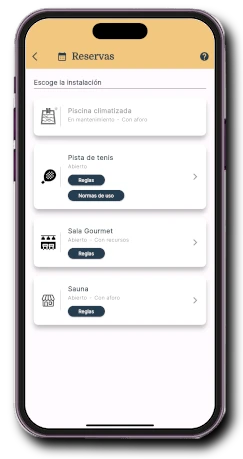
Choose the facility
Pools, rooms, courts or resources appear with their rules and availability.
Shared-space bookings
Organise the use of pools, rooms, sports courts, children’s areas and any shared space with a calendar adapted to your community rules.
A complete booking
Onzane connects the manager’s configuration to the resident experience and automatically applies each facility’s conditions.
Define schedules, slots, seasons, capacity, resources, prices and usage rules.
Check availability and choose the facility, day, time, places or resources from the app.
The system checks property limits, payments, permissions, blocks and advance periods.
The booking is recorded and can enable access or devices during its authorised time.
From the management panel
The community adapts bookings to its own rules without forcing every space to work in the same way.
In the Onzane app
Residents see the facilities enabled for their property, know the rules before confirming and keep all their bookings in one place.
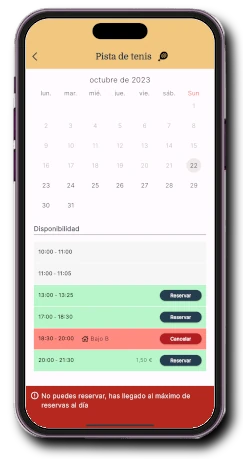
Pools, rooms, courts or resources appear with their rules and availability.
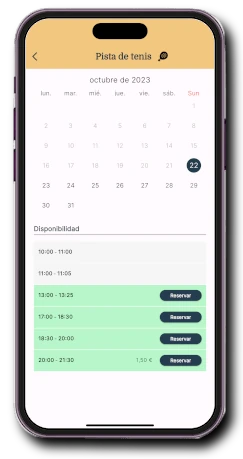
Available and occupied slots are shown before starting the booking.
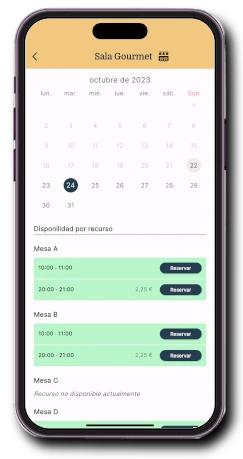
A room can be divided into tables, desks or other resources booked separately.
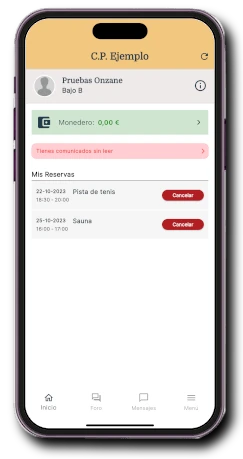
View, change or cancel upcoming bookings without finding the facility again.
Fair use
Onzane automatically checks whether the property meets the community conditions and explains why a slot cannot be booked.
More than availability
Each community activates only the capabilities it needs and can expand operations without changing systems.
Charge per slot, request a deposit or offer lighting, guests and optional services.
Distribute use fairly, notify cancellations and allocate slots based on previous use when needed.
Open a door, enable lighting or record attendance only during a valid booking.
A booking step by step
Availability, rules and confirmation come together in one experience, without calls or message exchanges.
Frequently asked questions
Answers about properties, spaces, capacity, payments, rules and booking-linked access.
Any space needing a calendar or usage control: pools, padel or tennis courts, gyms, social rooms, gourmet rooms, barbecue areas, children’s areas, workstations or individual resources inside a facility.
Rules can apply per property. Even when several people in one home use the app, they share the booking limits defined by the community.
Yes. Each facility can have its own schedules, seasons, advance periods, limits, capacity, rules, cancellation periods, blocks and prices.
Yes. The community can set a slot price, deposit and optional services. Payments connect to the wallet and enabled payment methods.
Interested residents can request a cancellation alert. When the slot becomes available again, they receive a notification so they can book it.
Yes. Onzane can connect to locks and devices to enable access only during the time of a valid booking.
Yes. Authorised people can view details, create or cancel bookings, change statuses and act for residents from the management panel.
Bookings adapted to your community
We help configure each facility and support residents and managers during rollout.